|
|
|
If you have a problem with HomeVision/HomeVision-Pro or a technical question about it, read this page first. It addresses over 95% of the problems and questions users might have. If this page doesn’t help, see our main technical support page. NOTE: Unless stated otherwise, this information applies to both HomeVision and HomeVision-Pro.
Problems and QuestionsX-10:
Infrared: Input/output ports: Video system:
Digital temperature sensors:
RCS thermostats: GE (CADDX) NetworX security system:
Other hardware issues: Software issues: Programming issues:
|
 | If you’re having problems with most or all IR signals controlling your equipment, the IR signal is probably not reaching the equipment to be controlled. If you’re using HomeVision’s built-in IR LED, note that it transmits out the front of the unit through the round circle. Place HomeVision as close as possible to the device to be controlled and aim it straight at it. Even if this can’t be HomeVision’s permanent location, it’s a good way to check if HomeVision learned the signal OK. If you’re using an IR distribution system (connecting block, mini-emitters, etc.), make sure it’s working properly. Using a mini-emitter with a "talk-back" LED (typically a red LED that flashes whenever it transmits) is a good way to test if the emitter is really transmitting. Also note that mini-emitters are designed to only transmit a few feet or less. If you are sure the IR distribution isn’t the problem, read the next paragraph. |
| Check to see if the IR TX LED on the front of HomeVision blinks when HomeVision transmits. If it doesn’t, the command isn’t being performed. Make sure you are properly commanding the signal. Note that after you’ve learned the signals, you need to download your schedule into the controller before you can transmit them. The only exception to this is for the "IR Learn" screen, where you can temporarily load a learned signal and test it. |
| If you’re transmitting out the front of HomeVision, make sure you haven’t removed jumper J1 (which disables the internal transmitter). |
| Make sure there aren’t any bright lights shining at the front of HomeVision while learning the IR signal. The room doesn’t have to be dark, but you don’t want a light aiming right into the IR receiver. If it is, it might corrupt the signal HomeVision learns. See the "HomeVision IR RX LED is flashing frequently" topic for more information. |
| If you are only having problems with certain IR signals, there are several things you can try for them: |
- If you learn a signal several times, are you getting consistent signal information (i.e., the same number of pulses and signal length)? If not, you could be getting infrared noise interfering with the learning process. See the "HomeVision IR RX LED is flashing frequently" topic for information on solving this problem.
- Check the "Learn carrier frequency" box to make HomeVision measure the signal’s carrier frequency. You then must hold the remote within a few inches of HomeVision while learning. If HomeVision reports a carrier frequency between 35kHz and 45kHz for a particular remote, it probably isn’t necessary for HomeVision to measure it for the other buttons. All the buttons use the same frequency, and HomeVision’s default frequency of 38.4kHz should work fine. But if it’s outside this range, learning the frequency for each signal will improve performance.
- When pressing the remote button, try some quick presses or some slightly longer presses. Note the number of pulses reported on the learn screen. If you press different buttons, you will usually see a pattern. For example, if you press any of the buttons very quickly, you may get 13 pulses. If you press any a little longer, you get 26 pulses. And if you hold even longer, you get 39 pulses for all the buttons. This is because most remotes repeat the same signal several times. In most cases, HomeVision only needs to receive one set (13 pulses in this example) in order for it to control your equipment. However, some equipment requires two or three sets. Let’s say you’re able to get one signal to work right, but only if it has 39 pulses. It’s likely the other buttons will be the same way. So when learning them, press the button a little longer so you get the same number of pulses for these. But if 13 pulses work fine for one signal, learn the others the same way.
- Some users have had success using another remote to teach HomeVision instead of the original remote. For example, if you have a universal (preprogrammed) remote, set it up to control your equipment. Then, use it to teach HomeVision.
- One HomeVision user has created a program that can convert Pronto (a remote control from Phillips) IR codes into the HomeVision format. If you know the Pronto code for a signal, you can use this program to create a HomeVision IR file, then import the signal(s) into your HomeVision schedule. This eliminates the need for HomeVision to learn the signal. For more information on this program (IRLEdit), see this web page: http://home.wanadoo.nl/sbron/ and look for the "infrared code converter".
Response: After learning a signal, you must save it (using the "Save" button on the "IR Learn" screen), and then download the schedule into the controller.
Problem: Unable to receive learned IR
signals
Response: Make sure you have enabled this feature. Use the "Controller Settings" screen under the "Configure" menu. Select the "Infrared" tab, and in the "Receive learned IR signals" box, check "Enable this capability". The other settings can probably be left unchanged. Then download the schedule into the controller. Note that these settings are stored in your Windows registry, not your HomeVision schedule file. Therefore, if you install HomeVision on a new PC, or install a new Windows version on your PC, you will have to redo the settings.
If HomeVision is properly receiving and responding to some learned IR signals but not others, try the following:
| Most remotes transmit the same signal multiple times when you press the button. The number of repetitions often depends on how long you hold the button. For example, you may notice that if you hold the button for a normal duration, HomeVision receives 24 pulses (as shown in the "Number of Pulses" box on the IR Learn screen). However, if you press the button very quickly, there may be only 12 pulses. Conversely, if you hold it longer, you may get 36 pulses. For these types of signals, we suggest you learn and save the shorter signals (i.e., the 12-pulse signal in this case). This will improve the recognition later when you’re using the remote to control HomeVision. See the "Controller Setup For Receiving Learned IR Signals" section of the owner’s manual for more details. |
| As a last resort, adjust the "CheckOnAndOffTimes", "CheckFirstPulse", or "Tolerance" Setting. See the "Controller Setup For Receiving Learned IR Signals" section of the owner’s manual for details. |
Problem: HomeVision IR RX LED is flashing frequently
Response: This means the HomeVision infrared receiver is picking up infrared or electrical noise. It can come from nearby fluorescent or bright incandescent lights, and sometimes even bright sunshine. The LED flashes on any IR energy, even if it’s not a remote signal. As long as it happens only occasionally, it won't pose any problem. If it happens continually, it will interfere with receiving and learning IR signals. You should be able to determine the IR source by turning lights on and off and reorienting the controller. Try the following:
| If you are using a Powermid or other IR "extended", move the IR emitter further from HomeVision. Powermids sometimes put out a low-level IR signal continually, which HomeVision can detect. |
| Move any nearby wires away from HomeVision and see if the LED stops blinking. |
| Turn off any fluorescent lights nearby. |
| Make sure there are no bright lights shining directly into the receiver. |
| Temporarily move HomeVision into another room to see if the LED stops blinking. If it continues to blink, try replacing the wall transformer (in rare cases, we’ve seen defective power supplies generate a lot of electrical noise). |
Question: Can I connect IR emitters directly to the IR TX jack?
Response:
HomeVision-Pro:
Yes.
HomeVision:
With the newer HomeVision units, yes. It's important to understand how HomeVision drives the output jack (there's a schematic in the IR chapter of the owner’s manual). It's a 5V output. With the newer HomeVision design (part number 1203C), there is a 75 Ohm resistor in series with the output to limit the current in case of a short circuit. We recommend you use this output to drive an amplified IR "connecting block", which in turn would drive your IR emitters. Alternatively, you can plug a single emitter directly in the IR TX jack (most "double" emitters will also work, but we can’t guarantee that they all will).
You can also put several emitters in parallel as long as they don’t require too much current. You normally don’t need a resistor with each emitter since HomeVision already limits the current. The total current is dictated by the voltage drop across the emitter, which is typically around 1.5V. This results in a total current of about 47ma [ 3.5V (5V – 1.5V emitter drop) divided by 75 Ohms]. The more emitters you have, the lower the current through each. Most "mini-emitters" are designed to work on 10ma or less, so 4 or 5 emitters should work OK. Another thing to note is that the emitters should all be the same type. If not, and one has a lower voltage drop than the others, it will draw all the current and the other emitters won’t work. This is one reason we recommend using a connecting block.
With the older HomeVision design (part number 1203A), there’s no current limiting resistor in series with the IR TX output. It can drive emitters directly, if you add a current limiting resistor in series with each. Most mini-emitters work on 5 to 25mA, so a 200 to 1000 ohm resistor would be sufficient. Since the 1203A HomeVision has no built-in resistor, this output can drive many more emitters than the newer 1203C version. The output jack can provide up to 100mA while HomeVision is also transmitting from the built-in IR LED. If you remove jumper J1 from the circuit board to disable the LED, the output jack can drive 200mA.
Problem: I can’t get the IR TX jack to drive my IR distribution system
Response:
HomeVision:
The HomeVision IR TX jack output is approximately 5V when transmitting IR, and open at all other times. If the jack is the sole source driving a connecting block, it should work fine. However, if you connect other distribution equipment (such as an IR receiver) to the same connecting block input that HomeVision is connected to, problems could result. This is because IR receivers and other distribution systems commonly use a 12V signal, and connecting this signal directly to HomeVision could cause current to flow into HomeVision, impacting operation.
In this case, you should put a diode in series with the HomeVision IR output to prevent current flow into HomeVision. Any "signal", "switching", or "rectifier" diode will work, and you can find these at Radio Shack and any online electronics parts distributor. The diode cathode (the end with a line on it) connects to the connecting block input (which is the same as the external IR receiver wire) and the other end (the anode) connects to the HomeVision IR output. Most of the Xantech products output 12V, so a diode is recommended with them.
HomeVision-Pro:
The HomeVision-Pro IR TX jack output is approximately 12V when transmitting IR, and open at all other times. This should work fine with all IR distribution systems.

Input/Output Ports
Problem: Connecting voltage inputs to Port B (or Multifunction Expansion Board Port 1)
Response:
HomeVision:
These inputs have 2700 Ohm "pullup" resistors connected to 5V. This makes it easy connect switches to them, but it can be more difficult to connect devices that output voltages. The input chips also draw a good deal of current to ground. This drops the voltage to around 3V (which is read as "high") when the input is not connected. If you connect a switch (or other contact closure) from the input to ground, it pulls the voltage to 0V, which is read as "low". This is how most users use these inputs, and it works fine.
When you apply a signal that’s 12V (or another voltage) when activated, the input goes even higher than 3V, and is read as "high". If the input signal goes to ground when not activated, then it would be read as "low", and this will work fine. However, if instead it opens when not activated (as many devices do), HomeVision can't distinguish between the two conditions, as they’re both "high". Ideally, we should have allowed you to remove the pullup resistor, but we didn’t (actually, you can remove them on the Multifunction Expansion Board, as discussed later). So how can you make this work? What you have to do is add a resistor from the input to ground. The idea is to drop the voltage (when the input is open) to less than 1V so it's read as a low. Resistors between 560 and 680 Ohms are ideal, but values as high as 1000 Ohms (1K) will normally also work.
On HomeVision, the 2700 Ohm "pullup" resistors are soldered to the board and are difficult to remove. However, on the Multifunction Expansion Board, the Port 1 (or "D") resistors are in a 16-pin DIP package in circuit location U3. If you want to use all of these inputs for voltages (instead of switch closures), you can remove this part. You then won’t need to add the extra resistors mentioned in the above paragraph. If you only want to use some of the inputs for voltages, it is possible (with care) to bend up certain leads to keep them out of the socket. Each of the 8 leads on one side of the chip go to one input port, so bend up the lead(s) for inputs where you want to remove the resistor(s).
HomeVision-Pro:
These inputs have 2200 Ohm "pullup" resistors connected to 5V. When connecting devices that output voltages, use the configuration switches to disable the pullup resistor(s).
Problem: Input port seems to react slowly
Response: The HomeVision and HomeVision-Pro Port C inputs, and the Multifunction Expansion Board Port 2 and 3 inputs, are very sensitive. This means that a low voltage will "pull" the input low while drawing very low current (which means it won’t affect the circuit being read). When nothing is connected to these inputs, they "float" to near 5V, and are read as "high" by HomeVision. Normally, HomeVision will detect the input port change within 10 milliseconds (0.01 seconds) of the input actually changing. However, certain devices (such as TV sensor probes) can cause the input to take a little while longer to change state. We’ve heard reports of up to several seconds delay with some TV probes.
You can speed up the change by adding a resistor. A resistor value of 4000 to 25000 Ohms is ideal, although higher values will probably also work. The resistor should be connected between the input port and 5V.
Question: Do I need to use a digital BOB (break out box) with sensor probes?
Response: No. The BOB, from SmartHome, doesn’t provide any real benefit (and actually creates problems) when used with HomeVision. The sensor probes can be connected directly to HomeVision without the BOB. One popular way to connect them to HomeVision is with a cable with a 3.5mm stereo jack on one end and wires on the other end. If you don’t have such as cable, you can get a cable with a 3.5mm stereo jack on one end and plug on the other end and cut it in two. The sensor’s plug can plug into the cable jack, and the cable’s wires connect to the HomeVision input terminal blocks. If you don’t have a cable, you can cut the probes wires and connect them to the HomeVision input terminal blocks. See our application note on SmartLinc probes for more details.
If you do use the BOB, you will probably need to add a resistor to each output. It appears that when a probe is off, the BOB output is an open circuit (instead of being pulled to ground). Under this condition, the HomeVision input goes "high", just as when the probe is on. To make the BOB work right, you must add a resistor from the BOB output (i.e., the HomeVision input) to ground to pull it low when the probe is off. If you use input Port B, resistor values between 560 and 680 Ohms are ideal, but values as high as 1000 Ohms (1K) will normally also work. The BOB actually works better on input Port C, which is more sensitive than Port B. With Port C, use a resistor between 4000 and 25000 Ohms (higher values will probably also work).
Problem: Some inputs stopped working
Response: First, disconnect any wiring from the input port so you can properly test it. With the input disconnected, the port should be read as a "high". Connect a wire from the input to HomeVision ground and the port should go "low". If it does, the port is OK. If it does not work, read the next paragraph.
A malfunctioning input is usually due to damage to the port interface chip. This can be caused by applying too high of a voltage to the input or by nearby lightning strikes. See the following for information on each input port:
| HomeVision and HomeVision-Pro Port B uses two chips, part number 1489 or 14C89. One chip (circuit location U10 on 1203A boards and U9 on 1203C boards, or U5 on HomeVision-Pro) reads inputs 1-4. The other chip (circuit location U11 on 1203A boards and U10 on 1203C boards, or U6 on HomeVision-Pro) reads inputs 5-8. If you swap these chips and the problem moves with the chip, you will know which one is bad. If the problem stays with the same port, the damage to HomeVision is more severe (the 82C55A chip is likely damaged). If you have a voltmeter to test this port, you should note that it should read about 3V when the input is not connected and 0V when connected to ground. |
| Multifunction Expansion Board Port 1 (or D) uses the same two chips as HomeVision and HomeVision-Pro Port B. One chip (circuit location U5) reads inputs 1-4, the other chip (circuit location U2) reads inputs 5-8. If you swap these chips and the problem moves with the chip, you will know which one is bad. If the problem stays with the same port, the damage to the Multifunction Expansion Board is more severe (a 74HC573 or PCF8574 chip is likely damaged). |
| HomeVision and HomeVision-Pro Port C uses one chip, part number PCF8574 (in circuit location U17 on 1203A boards and U16 on 1203C boards, or U7 on HomeVision-Pro). This port is rated for 0 to 5V, and applying a higher voltage will likely damage it. These same chips are used on the Multifunction Expansion Board. If you happen to have one of those boards, you could try one of its PCF8574 chips in HomeVision to see if it fixes the Port C problem, thus verifying the defective chip. If you have a voltmeter to test this port, you should note that it should read about 5V when the input is not connected and 0V when connected to ground. Also note that if you switch Port C from being an output port to being an input port, after downloading a new schedule for the first time, you should remove power from HomeVision and reapply it to force the chip to the "input" mode (you only need to do this once after switching from output to input mode, not every time you download a schedule). |
| Multifunction Expansion Board Ports 2 and 3 (or E and F) use a 74HC573 latch. One chip (circuit location U10) reads Port 2, the other chip (circuit location U16) reads Port 3. If you swap these chips and the problem moves with the chip, you will know which one is bad. If the problem stays with the same port, the damage to the Multifunction Expansion Board is more severe (a PCF8574 chip is likely damaged). |
Note: See this web page for more information on where to obtain replacement parts.
Problem: Analog inputs are not working
Response: Here's one way to test the HomeVision-Pro or Multifunction Expansion Board analog inputs:
Variable #1 (Analog
input 1) = Analog input 1
Variable #2 (Analog input 2) = Analog input 2
Variable #3 (Analog input 3) = Analog input 3
Variable #4 (Analog input 4) = Analog input 4
Variable #5 (Analog input 5) = Analog input 5
Variable #6 (Analog input 6) = Analog input 6
Variable #7 (Analog input 7) = Analog input 7
Variable #8 (Analog input 8) = Analog input 8
You can then view the variable values on the TV variable screen or from the software's "Variables & Flags" control screen. With a wire, connect one input at a time to ground and verify the variable value goes to 0. Then connect one input at a time to 5V and verify the value goes to 255.
A malfunctioning input is usually due to damage to one of the two analog input chips, part number PCF8591. On the Multifunction Expansion Board, one chip (circuit location U18) reads inputs 1-4; the other chip (U19) reads inputs 5-8. If you swap these chips and the problem moves with the chip, you will know which one is bad. If the problem stays with the same port, the problem is more severe (a PCF8574 chip is likely damaged). On HomeVision-Pro, the chip is in circuit location U2.
Note: See this web page for more information on where to obtain replacement parts.
Problem: A Port A output stopped working
Response: If the output previously worked, then stopped, the HomeVision output chip is likely damaged. This usually occurs due to an incorrect connection, which can sometimes visibly damage the part (it might even start to melt or get a hole in it!)
Port A is driven by one main chip, part number ULN2803A (in circuit location U4 on 1203A boards and U3 on 1203C boards). One of these chips is also used on the Multifunction Expansion Board. If you happen to have one of these boards, you could try its ULN2803A chip in HomeVision to see if it fixes the Port A problem, thus verifying the defective chip. If the problem remains, the damage to HomeVision is more severe (the 82C55 chip is likely damaged).
Note: See this web page for more information on where to obtain replacement parts.
Video system
Problem: Video screen has scrolling lines on it
Response: We’ve had several reports of the HomeVision TV menu having two white lines (spaced about 1/2 the vertical height of the display apart) that slowly and continuously scroll from the bottom to top of the screen. In some cases this was caused by a defective wall transformer (power supply). In other cases, it was due to a "ground loop" between HomeVision and one or more devices connected to it. Ground loops can be difficult to solve. If you suspect this problem, you might do a web search on "ground loops" to look for advice.
Question: Can HomeVision work with S-video signals?
Response: Not directly - HomeVision requires a "composite" video signal. However, there are converters available that can convert between these two video formats. With these, you could connect S-video signals to HomeVision.
Question: Can I overlay the HomeVision video onto all my TV channels?
Response: No, not exactly. HomeVision can overlay text onto one video signal. If you use a cable box, satellite decoder, VCR, digital video recorder, or other device as your video source, HomeVision can overlay text onto this signal. The video output of the source device would pass though HomeVision. This requires the source to provide a regular composite video output, and that you use that source to change channels. With this setup, you don’t use your TV’s tuner.
If you want more than one TV to see the HomeVision video, you can use a modulator and then distribute the modulated signal to all of your TVs. This would put the HomeVision video onto its own channel, and any TV could then view that channel. However, the HomeVision video text would not be overlaid onto each TV’s current picture. To do that, each TV would require it’s own HomeVision unit, plus an external video source.
Note that the coax cable from your cable company or antenna contain all channels modulated into a high frequency range. You cannot connect this to the HomeVision video input (even if you get an adapter that allowed the connectors to mate, it won’t do anything).
Digital Temperature Sensors
Problem: I can read the sensors OK from the software screen, but not in my schedule
Response: Make sure that the "Enable automatic sensor reading" option is checked. If not, HomeVision won’t read the sensors during normal operation. Also, be sure to download the schedule into the controller after making any changes. Finally, remember that you should put commands in your schedule to read the temperature sensors into your own variables. We recommend doing this in a periodic event running every loop. Check to see if the value is 255 (which indicates an error), and if it is, don't put it into your temperature variable. That way, an intermittent error will be ignored. Here's an example:
Variable #0 (temporary var) = Value of
Digital Temperature Sensor 1
If
Variable #0 (temporary var) <> 255
Then
Variable #1 (Temp Sensor 1) = Variable #0 (temporary
var)
End If
Problem: Intermittent sensor errors
Response: Digital temperature sensor problems on the Multifunction Expansion Board are usually due to too much wiring capacitance (such problems are much less common with HomeVision-Pro, as it uses an improved drive circuit). There are several ways to improve performance:
| Minimize the total cable length. One daisy chain usually works better than many shorter wires "home-run" to HV (assuming the total cable length is less). According to a Dallas Semiconductor technician, wires from the main cable to individual sensors should be 3 feet or less (with the length being more critical the further you are away from HomeVision. However, we had one user report that a "star" configuration worked best, but this seems to be the exception rather than the rule. |
| Unshielded cable is better than shielded cable (shielded cable usually has higher capacitance. |
| If the cable is shielded, don’t connect the shield, as it increases capacitance. |
| Non-twisted pair is better than twisted pair. This minimizes capacitance. |
| If you use twisted pair, our testing found it best to use one twisted pair for power and ground. On the other pair, use one for the signal and leave the other unconnected. This minimizes capacitance. However, a Dallas Semiconductor technician recommended using one pair for signal and ground, and a single wire from another pair for power. Perhaps different approaches may work best for different user's configurations. |
| If using a Multifunction Expansion Board, add a resistor between the temp sensor input port and 5V. A value of 2200 Ohms is ideal, but anything between 2200 and 4700 should help. |
| Try connecting a signal diode (Schottky, if available) between the signal and ground at each sensor. The cathode (the diode end with a line on it) goes to the signal. This will control "ringing" that can happen on long lines. |
| If using a Multifunction Expansion Board, try connecting a 100 Ohm resistor in series with the signal line at the Multifunction Expansion Board end of the cable. If you have more than one cable, use one resistor in each. |
Also, we recommend you read the sensors in a periodic event running every loop. Check to see if the value is 255 (which indicates an error), and if it is, don't put it into your temperature variable. That way, an intermittent error will be ignored. Here's an example:
Variable #0 (temporary var) = Value of
Digital Temperature Sensor 1
If
Variable #0 (temporary var) <> 255
Then
Variable #1 (Temp Sensor 1) = Variable #0 (temporary
var)
End If
Finally, see the next topic for another problem unique to the newer DS18S20 sensors.
Problem: I get errors with the newer DS18S20 sensors
Response: The newer DS18S20 temperature sensors are slower than the older DS1820 sensors. A DS18S20 can take up to 0.75 seconds to determine the temperature, while a DS1820 takes only 0.5 seconds maximum. During normal operations, the controller continually reads the sensors in multi-drop mode (regardless of whether you put any digital temperature sensor commands in your schedule). Each processor "loop", HomeVision checks to see if the sensor has finished calculating the temperature. If the sensor doesn't respond within a certain time (actually, a certain number of loops), HomeVision gives up and records error number 118. It will then try to read the sensor again. HomeVision was designed before the DS18S20 sensor was developed, so it only waits about 0.55 seconds. As a result, if a new, slower DS18S20 sensor is used, this error may occur. We will modify the HomeVision PROM to allow more time for these slower sensors. In the meantime, there is a workaround for this problem. Put a "DELAY 0.005 SECONDS" command in a periodic event running "every loop". This will slow down the controller slightly, ensuring that it waits long enough. Note that if you have add-on devices (like HomeVision-Serial or a Multifunction Expansion Board) attached, or you already have some periodic events that run every loop, you may not see these errors because the controller will already be running a little slower and allow time for the DS18S20 to respond.
Note that you can use the Digital Temperature Sensor Configuration Screen in the PC software to read the sensor temperature in multi-drop mode. When you do this, the controller runs a special function to read the temperature from the sensor, and it waits up to 0.55 seconds for the sensor to respond. With the slower DS18S20 sensors, this may not be long enough, so the controller may give up and report an error. In this event, the PC software displays the error message "Error reading device. Temperature conversion did not finish". Adding the DELAY statement as recommended above has no effect when reading the temperature from the Digital Temperature Sensor Configuration Screen. This will also be fixed in the next PROM release.
Problem: I connected the sensor wrong and it got hot
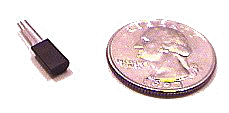
Response: This is an easy mistake to make. Be sure to note that the connection drawing in the manual (reproduced below) shows the bottom view of the sensor. When you connect it wrong, HomeVision should be OK but the sensor is usually damaged. Even if it seems to work after you reconnect it, we recommend replacing the sensor to prevent future problems.
RCS X-10 Thermostats
Problem: HomeVision isn’t controlling my RCS TX10/15 thermostat
Response: Possible causes:
| The HomeVision software is not configured properly (correct thermostat type, correct house code, etc.). Verify these settings in the "Thermostat Configuration" screen. |
| The thermostat’s X-10 address is incorrect. Verify the house code (set by switches or jumpers on the thermostat base unit) is correct. |
| The thermostat is not configured properly. Run the HomeVision "Initialize Thermostat" command. This causes HomeVision to transmit a series of X-10 signals to the thermostat to configure it. It is possible that the thermostat may lose it’s setting after a power failure, although it shouldn’t. Therefore, we recommend you perform the "Initialize Thermostat" command in your power failure recovery event, and also in a periodic event running every few hours, to ensure the correct setting. You can also put this command in a macro and then run it from the PC (the PC software may report an error because the command takes a while to run, but you can ignore this error. See here for details on the possible error message). |
| The thermostat’s X-10 powerline interface (TW-523 or equivalent) or its cable is defective. You can swap the TW-523 with the one on HomeVision. If HomeVision can transmit and receive with it, it is probably OK. |
| Excessive noise on the powerline is corrupting the X-10 transmission. Refer to our ‘X-10 debugging tips" application note (PDF format) for assistance in debugging such problems. Note that you can view the red LED on the thermostat’s TW-523 to help determine if it is receiving the signals from HomeVision. |
| The thermostat is defective. |
Problem: HomeVision isn’t tracking status of my RCS TX10B/15B thermostat (but can control it OK)
Response: The following trouble-shooting steps may help to resolve this problem:
   90 X-10 House/Unit : J 6
   92 X-10 Func Only : Level 02 Preset Dim
Typical messages for temperature or setpoint changes will look like this:
   90 X-10 House/Unit : J 6
   92 X-10 Func Only : Level 09 Preset Dim
   90 X-10 House/Unit : J 13
   92 X-10 Func Only : Level 0E Preset Dim
Note that you will also see time and date messages if you have enabled time and date reporting, but this doesn’t matter – only the X-10 messages are important. If you see these X-10 messages, then HomeVision should be properly tracking the thermostat changes. If it is not, verify the thermostat is configured properly in the HomeVision software (correct thermostat type, correct house code, etc.).
If you don’t see these messages, then HomeVision didn’t receive the X-10 signal from the thermostat. Go to the next step.
If the LED doesn’t blink, then the thermostat did not transmit a signal. Possible causes are:
| Thermostat is not configured properly. Run the HomeVision "Initialize Thermostat" command. This causes HomeVision to transmit a series of X-10 signals to the thermostat to configure it. It is possible that the thermostat may lose it’s setting after a power failure, although it shouldn’t. Therefore, we recommend you perform the "Initialize Thermostat" command in your power failure recovery event, and also in a periodic event running every few hours, to ensure the correct setting. You can also put this command in a macro and then run it from the PC (the PC software may report an error because the command takes a while to run, but you can ignore this error. See here for details on the possible error message). |
| Thermostat TW-523 or cable is defective and cannot transmit. You can swap the TW-523 with the one on HomeVision. If HomeVision can transmit with that TW-523, it is probably OK. |
| Thermostat is defective |
| Excessive noise on the powerline is corrupting the X-10 transmission (although this is unlikely if the thermostat is able to receive and respond to X-10 signals OK). |
If the LED blinks, view the Terminal Emulator screen again to check for the X-10 message. If HomeVision still didn’t receive it, there is probably an X-10 noise or signal degradation problem that is preventing the thermostat’s transmission from getting to HomeVision. Refer to our ‘X-10 debugging tips" application note (PDF format) for assistance in debugging such problems.
Also note that if you have a TX15B thermostat, you must disable HomeVision's "automatic reading" function to prevent it from periodically polling the thermostat (the TX15B will automatically report changes). You can do this from the "Thermostat Configuration" screen by unchecking the "Enable automatic reading" checkbox.
RCS Serial Thermostats
Problem: HomeVision isn’t controlling my RCS serial thermostat
Response: First, if you
are using a HomeVision add-on serial port (i.e., HomeVision-Serial or
HomeVision-Phone/Serial), verify that the HomeVision controller is communicating with the
add-on port OK. You can do this by checking
for an error message. From the Other menu,
select the Status Screen. On the Controller
Status tab, click Read Status to read the status from the controller. Near the bottom of the General Status section, it
will either indicate an error number or say “No controller error”. If there is an error reported, remove power from
the controller and reapply it (this will clear the error message stored in the
controller). Read the status again. If the error remains, consult the
“Miscellaneous” Chapter of the HomeVision Owner’s Manual for details on the
error. Errors with the add-on serial port
will usually be reported as error numbers 130 through 132, as shown below:
| 130: Set when HomeVision-Phone/Serial or HomeVision-Phone/CID device does not respond |
| 131: Set when first HomeVision-Serial device does not respond |
| 132: Set when second HomeVision-Serial device does not respond |
If you have one of these errors, consult the device installation instructions and verify that it is installed properly.
Assuming the HomeVision controller is communicating with the add-on port OK, or you are using the built-in port, we next need to make sure the port is transmitting messages. It should be repeatedly transmitting messages that look something like this:
A=1 Z=1 R=1
To see what HomeVision is actually transmitting, use one of the methods described in the “Viewing Serial Data” section of our application note “Debugging Serial Communications With Other Devices”. If you see these messages, then you know HomeVision is properly transmitting them. If you see garbage characters, then you have the HomeVision baud rate set incorrectly (the RCS thermostat uses 9600 baud). If you see nothing, then either the cable is connected wrong or your HomeVision schedule is not properly configured for the RCS serial thermostats. Refer to the Thermostat chapter of the HomeVision manual for configuration details.
If HomeVision is properly transmitting these messages, the RCS thermostat should be sending the proper response. To see what HomeVision is actually receiving from the thermostat, use one of the methods described in the “Viewing Serial Data” section of our application note “Debugging Serial Communications With Other Devices”. You should see messages like this being received from the RCS thermostat:
A=00 O=1 Z=1 T=79 SP=74 M=C FM=1
or this:
A=00 O=1 Z=1 T=79 SP=74 SPH=72 SPC=74 M=C FM=1
If you see these, then everything should be working properly. If you do not see any response, the RCS thermostat is probably not transmitting properly.
One way to test an RS232 thermostat is to connect it directly to your PC. Set the PC's baud rate to 9600 and use the HomeVision Terminal Emulator Screen to send commands to the thermostat and view the response. The following table shows some commands you can send and an example of the thermostats response message. Note that if you don't have a multi-zone system, the "Z=1" portion of the command may be omitted (this specifies the zone number, 1 in this example).
| ACTION | COMMAND TO SEND | EXAMPLE THERMOSTAT RESPONSE |
| Request zone status | A=1
Z=1 R=1 |
A=00 O=1 Z=1 T=79 SP=74 M=C FM=1 |
| Set fan to ON | A=1
Z=1 F=1 |
No response |
| Set fan to AUTO | A=1 Z=1 F=0 | No response |
| Set mode to HEAT | A=1 Z=1 M=H | No response |
| Set mode to COOL | A=1 Z=1 M=C | No response |
| Set mode to AUTO | A=1 Z=1 M=A | No response |
| Set mode to OFF | A=1 Z=1 M=O | No response |
| Setpoint to 75 | A=1 Z=1 SP=75 | No response |
| Increment setpoint | A=1 Z=1 SP+ | No response |
| Decrement setpoint | A=1 Z=1 SP- | No response |
Response: The serial communications protocol for these thermostats is slightly different than the older RCS serial thermostats. These thermostats require a newer HomeVision or HomeVision-Pro PROM, version 3.42 or higher.
GE (CADDX) NetworX Serial Security System
Problem: HomeVision isn’t controlling my NetworX serial security system
Response: First, if you are using a HomeVision add-on serial port (i.e., HomeVision-Serial or HomeVision-Phone/Serial), verify that the HomeVision controller is communicating with the add-on port OK. You can do this by checking for an error message. From the Other menu, select the Status Screen. On the Controller Status tab, click Read Status to read the status from the controller. Near the bottom of the General Status section, it will either indicate an error number or say “No controller error”. If there is an error reported, remove power from the controller and reapply it (this will clear the error message stored in the controller). Read the status again. If the error remains, consult the “Miscellaneous” Chapter of the HomeVision Owner’s Manual for details on the error. Errors with the add-on serial port will usually be reported as error numbers 130 through 132, as shown below:
| 130: Set when HomeVision-Phone/Serial or HomeVision-Phone/CID device does not respond |
| 131: Set when first HomeVision-Serial device does not respond |
| 132: Set when second HomeVision-Serial device does not respond |
If you have one of these errors, consult the device installation instructions and verify that it is installed properly.
Next, you may want to use the security system control screens on the TV menu system for debugging. Use these screens to verify HomeVision is communicating with the security system properly. If the screen reports a communications error, here are some things to try:
| Remove power from the security system, then reapply it. |
| Verify the serial cable is properly connected between HomeVision and the NX-584. Be sure you have the correct cable type. When using the built-in HomeVision port, use a standard serial cable (just like the one that comes with HomeVision). When using an add-on port, use either a "null modem" cable, or a standard cable with a null modem adaptor. |
| Verify that the NX-584 or NX-8E parameters were set up properly. It's quite easy to make a mistake, and that may prevent HomeVision from communicating with it. |
If the problem continues, we need to make sure the HomeVision serial port is transmitting messages to the security system. It should be repeatedly transmitting messages that look something like this:
0225002750
and
0227042D58
To see what HomeVision is actually transmitting, use one of the methods described in the “Viewing Serial Data” section of our application note “Debugging Serial Communications With Other Devices”. If you see these messages, then you know HomeVision is properly transmitting them. If you see garbage characters, then you have the HomeVision baud rate set incorrectly (the NetworX security system typically uses 19200 baud, although it can be changed). If you see nothing, then either the cable is connected wrong or your HomeVision schedule is not properly configured for the NetworX security system. Refer to the Security Systems chapter of the HomeVision manual for HomeVision configuration details.
If HomeVision is properly transmitting these messages, the security system should be sending the proper response. To see what HomeVision is actually receiving from the security system, use one of the methods described in the “Viewing Serial Data” section of our application note “Debugging Serial Communications With Other Devices”. You should see messages like this being received from the security system:
0A0500000008000000000017D0
and
090703020202020202FE1EE6
If you see these, then everything should be working properly. If you do not see any response, the security system is probably not transmitting properly. This is most likely due to the NetworX not being configured properly. Refer to the Security Systems chapter of the HomeVision manual and the NetworX documentation for NetworX configuration details.
Problem: HomeVision isn’t communicating with my NetworX NX-8E
Response:
The NX8E (NX-8E) requires slightly different configuration settings than the NX584 described in
the HomeVision manual. Here are the NX8E settings:
| Location 207: SERIAL PORT ENABLE
|
| Location 208: SERIAL PORT BAUD RATE
|
| Location 209: HOME AUTOMATION PROTOCOL
|
| Location 210: NX-8E TRANSITION-BASED BROADCASTS
|
| Location 211 : NX-584 COMMAND/REQUEST ENABLED
|
After making these changes, you should remove power from the NX8E (including the battery) and then power it back up.
Other Hardware Problems
Problem: I just got HomeVision and can’t get it to communicate with my PC
Response: There are a variety of things that can cause this, usually related to an incorrect serial port setting. Follow the instructions in the "Troubleshooting" chapter of the owner’s manual. If you can’t get it to work, e-mail us with the results of your troubleshooting and we’ll help you figure out what is wrong.
Problem: HomeVision suddenly stopped communicating with my PC
Response: If HomeVision previously communicated OK, then stopped suddenly, it might mean the serial interface chip has been damaged. Every year there are several HomeVision’s that have serial interface failures. The vast majority are caused by known lightning strikes. In many cases, other electronic devices in the home are also damaged (commonly including the PC serial port). All of the known lightning strike failures occurred when HomeVision was connected to a serial cable (even if the cable isn’t connected to the PC). In many cases, lightning comes in from the PC, probably through the modem's phone line. Other times, a long cable picks up a voltage surge from nearby wiring, damaging HomeVision.
There are several things you can do to test the serial connection. Open the "Terminal Emulator" screen under the "Other" menu. Remove power from HomeVision and reapply it. You should see a message from the controller displayed there that looks something like this:
   80 Power Restored.
   85 Time: 22:27:39 Date: 02/28/02
   81 Self-Test Passed!
If you see a message that contains all unreadable characters, the controller’s baud rate probably doesn’t match that of the PC software (you can change the software’s rate with the "Serial Interface" screen under the "Configure" menu). If you don’t see any message, the serial transmit circuitry in HomeVision may be damaged. To test HomeVision’s ability to receive serial data, open the "Controller Commands" screen under the "Control" menu. Select the "Turn user LED on" or "Turn user LED off" command and see if the "U" LED on the front of HomeVision responds (note that HomeVision-Pro doesn't have a user LED - instead, you could use the "I/O Ports Control Screen" to turn a relay on to see if HomeVision-Pro responds). If not, the serial interface circuitry in HomeVision or the PC may be damaged. Try connecting HomeVision to another PC serial port and see if it works there. If not, the problem may be with HomeVision (although it could be the serial cable).
When this HomeVision failure occurs, it's usually just the serial interface chip that's damaged. This is part number MAX232CPE (or equivalent) in circuit location U16 on 1203A boards and U15 on 1203C boards. On HomeVision-Pro, the U30 chip controls serial port #1, and the U31 chips controls ports 3 and 4. You could swap the two chips and see if the port begins working. You can get replacement parts from DigiKey, Jameco, Mouser, and most other electronics suppliers, for a couple of dollars. See this web page for more information on where to obtain replacement parts.
When it's just this chip that’s damaged, the rest of HomeVision keeps on working normally. However, about 25% of the time, the damage is so severe that the microprocessor and other chips are damaged. In this case, we normally recommend returning the unit for repair. We can normally fix it in a day or two. The repair cost (to get it working again) typically ranges from $50 to $70. In some severe cases, we recommend replacing all integrated circuit chips. This is safest approach, as it ensures you don't have any parts with latent damage that might fail soon.
If you plan to leave HomeVision connected to a PC, you might want to add a serial port isolator or surge suppressor to prevent damage from reaching it. B&B Electronics makes several types of lightning protection devices. Their 9POP4 opto-isolator can work well with HomeVision (note that a "port-powered" device usually will not work). Their 232SP9 will also work, but must be connected to an earth ground, and therefore may be more difficult to use.
Problem: HomeVision is having intermittent errors
Response: The HomeVision power supply (wall transformer) may be degraded. Typical power supplies seem to last only a few years before degrading. We've seen several cases where a degraded power supply caused all kinds of odd, intermittent behavior. In some cases you can measure the power supply output voltage while it's connected to HomeVision and see that it's below the rating (either 9VDC or 12VDC). In other cases, the voltage will measure normally, but it's generating electrical noise that interferes with the HomeVision processor. See here here for information on the HomeVision power supply. Note that we have not seen similar problems with the HomeVision-Pro regulated power supplies. This may be because the regulated power supply is more robust than the unregulated HomeVision supply.
If you're only having problems with X-10, see here.
Problem: HomeVision’s "Status On" LED is blinking
Response: This means the controller detected a problem with the schedule file in its memory, and is unable to execute your schedule. You need to download your schedule into the controller again to get it running. Several things can cause this condition:
| The controller’s memory got corrupted by a nearby lightning strike or electrical surge. |
| You began downloading a schedule into the controller, but the download didn’t complete. |
| The controller’s battery is dead (although this should never happen!). If you have a voltmeter, you can measure the battery’s voltage. It should be between 2.0 and 3.3V. On HomeVision-Pro, you can easily replace the battery. Use a CR2032, 3V battery. |
Problem: All HomeVision LEDs are off
Response: This usually indicates a power supply problem or short circuit. Try the following:
| Feel the power supply (wall transformer). It should be warm, but not hot. If burning hot, something is drawing too much current. |
| Disconnect the power supply (wall transformer) from HomeVision and measure its output voltage. It should be at least 9VDC. If not, replace it. |
| If you have any accessory boards connected via the ribbon cable, disconnect them. If the HomeVision LEDs come on (indicating HomeVision started running), reconnect the boards one at a time until you find which one is causing the problem. |
| If you can isolate the problem to one board, remove power and disconnect anything you have connected to the digital input/output ports. Reapply power. If the problem goes away, it means something you had connected was shorted or drawing too much power. Reconnect them one at a time until you find the culprit. |
| If the problem remains, feel all the chips. Only the voltage regulator (the part with the heatsink on it) should be warm. If any other chip is warm, is could be defective. Contact us to figure out how to fix it. |
Question: How can I clear the controller’s memory?
Response: To clear the controller's memory, disconnect power and remove the cover. You then need to break the battery connection to the memory chip. On HomeVision-Pro, you can remove the battery. On HomeVision, there are two alternative ways to do this:
After clearing the memory and reapplying power, the controller will halt itself since the schedule has been erased. This will cause the "ON" LED to blink. You will then need to download your schedule into the controller. Note that the controller will use its default serial port rate of 19,200 baud.
Problem: I’m getting error messages reported when I read the controller’s status
Response: Whether this is really a problem depends on the error message and its frequency. Refer to the "Miscellaneous" chapter of the HomeVision owner’s manual for a description of the error numbers. Note the following:
| Once an error occurs, it will continue to be reported until you remove the controller’s power or clear it (there’s a command to do this). |
| Here’s an automated way to determine how often failures are occurring. Create a periodic event and set it to run every loop. Add a variable to count errors and set its power failure value to zero. Include something like this in the periodic event: |
If
   Controller Error
Then
   Increment Variable #0 (error count) [stop at 255]
   Turn User LED on
   Clear Error Message
Else
   Turn User LED off
End If
The variable will then count the errors, and the "U" LED on the front of HomeVision will light up whenever there’s an error. You could also have the event transmit a serial message or log a message to the TV event log when the error occurs.
Errors related to communications with the HomeVision add-on devices like HomeVision-Serial or HomeVision-Phone/CID or digital temperature sensors may occur occasionally. These normally do not impact operation, as HomeVision will try to communicate again a few milliseconds later. However, if these errors occur repeatedly, it indicates a real problem.
Problem: My HomeVision-Phone device (Serial or CID version) isn't detecting on/off hook changes
Response: About 5% of users experience this problem. It is due to excessive noise on your home’s phone line. This isn’t audible noise – it’s 60Hz AC "common mode" noise. This means the noise appears on both phone line wires equally, and the noise is relative to earth ground. Because most phones only care about the relative voltage between the two wires, they aren’t affected by this noise, and you won't normally even hear it. The problem usually occurs when the phone lines run parallel to high-voltage AC power lines for several miles or more. This high voltage can induce noise onto the phone lines. Unfortunately, there is nothing we are aware of that a homeowner can do to eliminate this noise.
If the noise goes above 10 or 15 volts AC, the phone interface chip in the version-2 phone devices may become unable to determine whether the phone is on or off hook. This will also cause the phone device’s green LED to show the incorrect conditions. With the version-1 devices, the noise would have a different effect. Hook status would work fine, but touchtone (DTMF) and caller ID detection could be degraded. We thought the newer version-2 devices would be immune to the noise, but they aren’t (although they are less susceptible than the version-1 devices that many users beta tested.
Question: How long of a serial cable can I use?
Response: The original RS-232 standard (for serial communications) specified a maximum length of 15 meters (nearly 50 feet). This was later changed to specify a maximum capacitance of 2500pF, which can mean a cable length of 75 to 200 feet, depending on cable capacitance. Many HomeVision users use Cat-5 cable runs of 100 feet or more with excellent results. We’ve tested HomeVision with 200 feet of inexpensive twisted-pair wiring without any problems.
Question: Can I make my own serial cable?
Response: Yes. HomeVision uses these three wires of the serial port, which are all that you need to connect:
| Pin 2 – TXD (transmit from HomeVision unit) |
| Pin 3 – RXD (receive input into HomeVision unit) |
| Pin 5 – Ground |
Question: How far away from HomeVision can the Multifunction Expansion Board be located?
Response: The Multifunction Expansion Board ships with a 3-foot ribbon cable to connect it to HomeVision. It is possible to make a longer custom cable, but 20 feet is about the upper limit. Any longer than that might cause operational problems. If you also have other add-on boards connected, then even 20 feet may be too long.
Question: What type of power supply is required with HomeVision?
Response:
HomeVision:
HomeVision requires a 9VDC transformer (12VDC will also work, but will dissipate a lot more power than is necessary, causing HomeVision to run hotter). If you have just the HomeVision unit connected, 300ma of current is sufficient. If you have other accessories, 500ma minimum is recommended. The supply cable should have a 2.1mm plug (although 2.0mm also works), with the center positive (i.e., the outside shell is ground).
HomeVision-Pro:
HomeVision-Pro requires a 12VDC, 1.5Amp regulated power supply. The supply cable should have a 2.1mm plug (although 2.0mm also works), with the center positive (i.e., the outside shell is ground). Alternatively, you can cut the plug off and wire it directly to a terminal block.
Question: Can HomeVision-Phone/CID receive caller ID on call waiting?
Response: We used to answer this question "no – the caller ID chip we use is not designed to detect caller ID on call waiting". However, we have one user who assures us that in his house, the device is quite accurately detecting caller ID on call waiting! So our new answer is "it wasn’t designed to, but it might work for you".
Problem: My HomeVision may have been damaged by lightning
Response: Every year a number of HomeVision units are damaged by lightning strikes. The most frequent damage occurs to the HomeVision serial port. It is also common for the digital I/O lines to be damaged. The troubleshooting tips elsewhere on this page should help you isolate most failures to the faulty chip. Once you know which chip is faulty, you can return the unit to us for repair, or obtain a replacement chip yourself. See this web page for more details.
Problem: My HomeVision-Pro unit keeps failing the clock test
Response: This can happen If the battery comes loose when power is not applied. This may happen during shipment of the unit to you. Use the Controller Time/Date screen under the Configure menu to reset the clock. Remove power from HomeVision-Pro and reapply it, and the clock test should pass.
Problem: My HomeVision-Pro unit (or other device) needs repair
Response: See our web page here for repair information.
Software Issues
Problem: The PC software won’t install properly
Response: Reboot the PC and run the installation program with no other programs running.
Response: When you send a command from the PC, the PC software first waits for a serial message from the HomeVision controller saying that the command was received, and then another message saying the command was completed OK. If the software gets the first message OK, but misses the second message, one of these error messages is displayed (the exact one depends on details of the particular command and isn’t important). This problem can happen when you send a command from the computer and one of the following two situations exists:
Only situation 2 is a real problem, since in situation 1, the command actually works OK. However, situation 2 shouldn't affect your ability to use commands that transmit serial messages to the PC (like to run a macro that plays a WAV file). However, to test such a macro, you can’t command the macro from the PC. Alternatively, you could command the macro from the TV screen's Macro Control Screen with your infrared remote. Or you could set up an X-10 event to run the macro (like when an A-1 ON signal is received), and then transmit the X-10 signal from another X-10 transmitter in your house. The controller will then run the macro, transmit the serial message to the PC, and the PC will do what it's supposed to.
Question: Can I copy and paste multiple lines of actions?
Response: From within the Actions Entry Screen, you can only copy and paste a single line at a time. To so this, right-click the mouse or use the standard shortcut keys (Ctrl-C, Ctrl-V, and Ctrl-X).
You can copy the entire set of actions for an event. To do this, open the Object Summary Screen for the desired object type (macro, scheduled event, etc.). Select the Actions Defined field containing the desired actions, right-click the mouse, and use the pop-up window.
You can also copy actions between schedule files. To do this, run a second copy of the HomeVision application and follow the approach described above.
You can also use the HomeVisionXL software developed by a HomeVision user, and it can copy and paste multiple lines. Read more about it here: HomeVisionXL.
Question: Can I rearrange the order of objects (macros, flags, etc.)?
Response: Unfortunately, no. We hope to add this capability in a future version, but cannot estimate when this capability would be available. However, you can use the HomeVisionXL software developed by a HomeVision user, and it can reorder objects. Read more about it here: HomeVisionXL.
Question: Can I edit a schedule with a text editor and import it into the HomeVision software?
Response: No.
Problem: I've nearly used up all the HomeVision memory
Response: This is very rare, as there is sufficient memory for many thousands of schedule lines. However, if you run into this problem, there are several things you can do to reduce memory usage:
| Limit the use of commands involving text. These commands (such as commands to transmit serial data or display text on a video screen) use one byte of memory for each character, plus a couple of bytes for the whole command. Most other commands (or lines in a schedule) require only 3 to 5 bytes total. If you have lots of these text commands, they can take up a lot of memory. |
| If you have a series of commands that you use in multiple places in your schedule, put them in a macro. This eliminates the need to repeat multiple commands. The command to run a macro takes only 3 bytes of memory. |
| Reduce or eliminate the number of "RAM video screens" you use. Each screen requires 264 bytes of memory. |
Question: Can I upload a schedule from the controller into the PC?
Response: No, not with our available software. Therefore, be sure to make a backup of your schedule and store it in a safe place. If your only schedule is on a hard disk, and the disk crashes, you’ll have to recreate it from scratch. However, one of our users wrote a program in Linux that can read out most of the schedule information. You can find more information on his website here: http://www.tclcode.com/recover.html.
Question: How do I find my computer’s IP address to use with the web server?
Response: If you want to access the HomeVision software from outside your home, you need your "WAN" (Wide Area Network) address. One quick way to find it is to go to the web site http://www.whatismyip.com/. If you have a router, you should also be able to log into it to find its WAN address.
Note that addresses beginning with 192.168 are private addresses, which is not what you want to use when accessing the PC from outside your home. To find this private address, you can use "ipconfig" or "winipcfg" (Windows 95 through ME use "winipcfg" - Windows XP, NT, and 2000 use "ipconfig". You run winipcfg (or ipconfig) from a DOS prompt (also known as the command window). To open this, click Start, Run..., type "cmd" without the quotes, click OK. In the window that appears, enter ipconfig or winipcfg.
There are also a variety of shareware programs that provide the IP address and other network-related information.
Problem: Downloading a schedule using the "remote internet access" capability is very slow
Response: Unfortunately, this is normal. We hope to improve the speed in a future version.
Problem: When I start the HomeVision software, the PC serial port doesn't automatically open
Response: Open the Remote Internet Access screen under the Configure menu. The Serial Connection Mode is probably set to "Client". In this configuration, the software expects to connect to Server software running on a remote PC (to which the HomeVision or HomeVision-Pro controller is connected). Therefore, it won't open the local PC serial port. To have the software use the local PC serial port, set the Serial Connection Mode to "None" or "Server".
Programming Issues
Problem: My schedule doesn’t seem to work right
Response: If your schedule doesn’t seem to work right, it is probably due to a programming error. HomeVision is very powerful, but that means there are many ways to make mistakes. Following are the most common mistakes we see:
Incorrect use of "Delay" statement
"Delay" statements are only intended for short (usually <1 second) delays. If you need a longer delay, you should use a Wait Timer instead, like this:
   Wait 0:01:00.00 with timer #1 (motion timer), then
      ‘Do whatever you want after the 1 minute timer expires
   End Wait
Delay statements cause the controller to stop and wait before executing other commands. During this time, the unit will continue to receive IR and X-10 signals. However, it will not act on them or take any other action until the delay is over and it finishes executing the following events. Thus, the unit will seem to have halted. In contrast, a Wait Timer loads the timer with the specified time, then jumps to the line after the "End Wait" line and continues running. At this point the controller will operate normally. When the timer expires, it will come back and perform the actions between the "Wait" and "End Wait" lines. The delay statement was only intended for use where you need very precise control of short times (for example, if you need to set an output port high for 20 milliseconds, then low for 50 milliseconds, etc.). Also, see our application note (PDF format) about how the controller operates for more discussion of "Delay" statements.
Incorrect use of timers
Timers are probably the most confusing aspect of HomeVision programming. Incorrect use can cause all sorts of problems. Typically, they show up as "something was supposed to happen after a specific time, but it didn’t". If you haven’t carefully read the timer section of the manual, please do so. Pay particular attention to the differences between Wait Timers, Standard Timers, and Delay statements. Also, see our application note (PDF format) about how the controller operates for examples of how to properly use timers. Following is a summary of the common timer mistakes:
| Using a timer as both a Wait Timer and a Standard Timer: |
If you have a Standard Timer (where you have actions defined for it in the Timer Summary Screen), DON'T use it as a Wait Timer also. Here's why: When the schedule first loads, the timer "points" to the set of actions defined for it in the Timer Summary Screen. When the timer goes off, HV does the actions located where the timer "points" to. This works fine until you use the same timer as a Wait Timer (which you shouldn't do!).
When HV executes a Wait Timer command, HV "points" the timer to the set of actions immediately following the Wait Timer line. When the timer goes off, HV then runs these actions. However, the timer no longer points to the actions defined for it in the Timer Summary Screen. So from now on, whenever the timer goes off (regardless of how it was started), it will do whatever actions are pointed to by the most recent Wait Timer command, and won't do any actions defined for it on the Timer Summary Screen.
So the bottom line is, don't use a Standard Timer (where you have actions defined for it in the Timer Summary Screen) as a Wait Timer also.
| Using the same Wait Timer more than one place in your schedule (there are times this is appropriate, but you need to understand the consequences): |
A Wait Timer can only be associated with one set of actions at a time. Each time a new wait statement is executed, the specified timer will be reloaded with the new value and it will "point" to the new set of actions (between the "Wait" and "End Wait" lines). Only this latest set of actions will be performed. So normally, you should use different timers for each wait statement. However, there are times when it is appropriate to use the same timer different places. This application note (PDF format) contains some examples.
Problem: Wrong sunrise/sunset times outside the United States
Response: HomeVision expects the longitude value to be in the range of 0 to 360 degrees West. If you live East of Greenwich England (the zero point), you may refer to your longitude as some number of degrees East. To convert this to HomeVision’s format, subtract it from 360. For example, 160 degrees East should be entered as 200 degrees West.
Question: Can I schedule an event to occur only one time?
Response: Yes. Create a scheduled event and set it for the desired time. In the event’s actions, use an If-Then statement to make the actions happen only on the desired day (for example, only on "Saturday", or only on "July 4"). Then, add the action "Disable Scheduled Event". After the event runs, it will be disabled and won’t run again.
Response: Yes. Create a periodic event, set it to run "Every Loop", and enter the desired actions. In the actions, include the command "Disable Periodic Event". After the schedule loads, the event will be enabled and run immediately, after which it will be disabled and won’t run again.
Question: Can I transmit a carriage return out the serial port without a line feed?
Response: Yes. First add a variable – you might name it "temporary var" because it will only be used briefly. Then, perform the following two commands to transmit a carriage return:
   Var #1 (temporary var) = 13
   Serial port 1 transmit: Var #1 (temporary var) value as 1 binary byte
The number 13 is the ASCII value for a carriage return. When you transmit this value as a single byte, you are transmitting a carriage return. If you need to do this frequently, you can put the commands in macro and then run the macro whenever you need. You can use this same method to transmit any of the 256 possible ASCII values. For example, to send a line feed, set the variable to 10. Appendix B of the HomeVision owner’s manual contains a table of the first 128 ASCII codes.
|
|